

Best for a purpose-built Salesforce Flow calendar component: a custom Lightning Web Component. Best managed-component starting point: Avonni. Best for date entry without a calendar workspace: standard Flow screen inputs. This 2026 guide separates calendar interfaces from date fields so you choose the right implementation, not just a familiar-looking control.
- Choose a custom Lightning Web Component when your Salesforce Flow calendar component needs application-specific calendar behaviour.
- Evaluate Avonni for managed Salesforce UI components; require a calendar-specific demonstration before selecting a package.
- Use standard Flow date inputs when users only need to enter a date or date and time.
- Test record access, time zones, and Flow outputs before approving any calendar interface.
Why this matters
A date picker and a calendar workspace solve different problems. A date picker captures a value; a calendar workspace helps users understand events, dates, and scheduling context before making a selection.
That distinction determines your architecture. If users must inspect appointments before choosing a slot, a date field alone does not satisfy the requirement. If users only need to provide a renewal date, building a calendar adds unnecessary implementation work.
Start your 2026 shortlist with the user’s decision, not the calendar’s appearance. Define what the screen must display, what the user can change, and what the Flow receives afterward.
What makes the best Salesforce Flow calendar component?
Use these criteria before comparing implementation routes:
- Calendar behaviour: Define whether users need date entry, event browsing, event selection, or schedule editing. Treat each as a separate requirement.
- Flow integration: Specify the input data, output values, validation rules, and behaviour when users move backward through the interview.
- Data access: Require an explicit approach to record sharing, object permissions, and field access wherever records are queried or updated.
- Time handling: Decide whether the underlying value represents a calendar date or a particular moment. Test time-zone boundaries accordingly.
- Maintenance ownership: Name the person responsible for configuration, package upgrades, or custom code changes after deployment.
- Usability: Check keyboard operation, readable event labels, empty states, and the screen size your users actually use.
A component qualifies only when its supported behaviour matches the workflow. An attractive calendar that returns the wrong record or loses a selection on back navigation fails the evaluation.
Salesforce Flow calendar options at a glance
These are implementation routes, not interchangeable products. The ranking prioritizes a genuine calendar requirement first, a managed-component evaluation second, and straightforward date capture third.
| Rank and option | Best for | Standout characteristic | Key limitation |
|---|---|---|---|
| 1. Custom Lightning Web Component | Application-specific calendar behaviour | You define the calendar interaction and Flow contract | Your team owns implementation and maintenance |
| 2. Avonni Flow Screen components | Teams evaluating managed Salesforce UI components | Subscription components distributed through AppExchange managed packages | Calendar-specific suitability must be established during evaluation |
| 3. Standard Flow date inputs | Capturing a date or date and time | Direct input within a Flow screen | Not an event calendar or scheduling workspace |
Do not read the table as a claim that every option provides event scheduling. The correct choice depends on whether you need a calendar interface at all.
1. Custom LWC: best for application-specific calendars
A custom Lightning Web Component is the strongest route when a calendar must follow rules specific to your application. You define the interface, connect it to the necessary data, and expose the component to Flow screens using Salesforce’s supported component configuration.
The advantage is control. The trade-off is that a requirement on paper becomes implementation and maintenance work for your team.
What the custom component should own
Keep the component’s responsibility clear. It should display the required information, capture the user’s calendar interaction, and communicate the relevant selection to Flow.
Avoid turning the screen component into an unstructured collection of unrelated business rules. Decide which responsibilities belong in the interface, which belong in Flow, and which require server-side logic.
Custom LWC pros:
- You define the calendar views and selection behaviour.
- You control the values exposed to the surrounding Flow.
- You can design around application-specific record relationships.
- You can make accessibility and error handling explicit acceptance criteria.
Custom LWC cons:
- Your team must implement and test the calendar behaviour.
- Your team owns defects, compatibility checks, and future changes.
- Data access and input validation require deliberate implementation.
Best for: Salesforce developers and ISVs with requirements that justify owning a calendar component.
Define the Flow contract before the interface
Write the component contract before selecting a calendar rendering approach. Name the incoming records or identifiers, the selected output, and the condition that prevents the user from continuing.
For reactive output changes, Salesforce provides FlowAttributeChangeEvent. Use the supported Flow integration patterns rather than assuming an internal component state change automatically updates the Flow interview.
A useful acceptance statement is specific: selecting an event returns its identifier, and moving backward preserves the intended selection. That is testable. A requirement that merely says the calendar must work is not.
Verdict: Buy into the custom LWC route when calendar-specific behaviour justifies ongoing code ownership.
2. Avonni: best for managed-component evaluation
Avonni sells a subscription of no-code/low-code Salesforce UI components, including Flow Screen components, distributed as AppExchange managed packages. That makes it a relevant starting point for admins, developers, ISVs, and partners evaluating packaged UI building blocks.
For a calendar project, evaluate the required interaction directly. A component library’s relevance to Flow does not establish that it supports every calendar view, scheduling rule, or event-editing behaviour your application needs.
Evaluate the workflow, not the category label
Bring a working requirement to the evaluation: what records appear, how users select them, and what happens when the screen returns control to Flow. Ask for that exact interaction to be demonstrated.
A read-only overview, an event selector, and an editable schedule are different acceptance targets. Do not approve one as evidence that the others are supported.
Managed-component pros:
- Packaged UI components provide an alternative to building every interface element yourself.
- The offering includes Flow Screen components for Salesforce UI work.
- The managed-package model gives the evaluation a defined distribution and upgrade mechanism.
Managed-component cons:
- You must work within the selected component’s supported configuration.
- Package installation and upgrades become part of your release process.
- Calendar behaviour, output handling, and target-screen suitability need separate verification.
Best for: Teams that prefer evaluating managed Salesforce UI components before committing to custom development.
Make the evaluation decisive
For a 2026 package evaluation, supply representative records and ask the evaluator to complete the whole task. Opening a calendar is insufficient; the demonstration should include selection, validation, navigation, and the resulting Flow values.
Record the outcome against your acceptance criteria. If a required interaction cannot be demonstrated, keep it unresolved rather than replacing it with a promise or an assumption.
Verdict: Hold the purchase decision until the required calendar workflow is demonstrated.
3. Standard Flow inputs: best for simple date capture
Standard Flow screen date inputs suit workflows that need a date or date-and-time value without an event calendar. Examples include entering a follow-up date, recording a requested appointment time, or collecting a deadline.
This route is deliberately narrower than a calendar component. It captures what the user enters; it does not, by itself, establish availability or show competing events.
Standard input pros:
- The interface stays focused on collecting the required value.
- You avoid introducing a custom calendar solely for date entry.
- The surrounding Flow can use the captured value in subsequent logic.
Standard input cons:
- A date input does not provide an event overview.
- Entering a time does not prove that the time is available.
- Scheduling rules still need explicit validation elsewhere in the workflow.
Best for: Salesforce admins building forms where the user already knows which date to enter.
Do not confuse a requested time with a booking
A requested appointment time is an input, not confirmation that a resource is free. If the workflow promises a booking, it needs an availability check and a defined record-creation or update process.
For a 2026 renewal-date form, keep the interface simple unless users genuinely need scheduling context. A calendar workspace should earn its place by helping users make a decision that a date field cannot support.
Verdict: Skip a dedicated calendar component when standard date capture satisfies the task.
How to validate your calendar choice
Use the same evaluation sequence for custom code and managed components. Consistent acceptance criteria prevent a polished demonstration from outweighing a functional gap.
Define the task
Write down the action the user must complete: enter a date, select an existing event, or change a schedule. State whether the screen displays information, changes information, or does both.
Map the data
Identify the records and fields the interface needs. Separate a date-only business value from a timestamp that represents a particular moment, and define which value the Flow must receive.
Test the interaction
Require at least 3 test cases: an ordinary selection, an empty result, and a rejected selection. These are recommended acceptance tests, not a claim about any product’s capabilities.
Verify the outcome
Check the returned values and subsequent Flow behaviour. Confirm what happens after backward navigation, cancellation, and a failed save instead of stopping the test when the calendar looks correct.
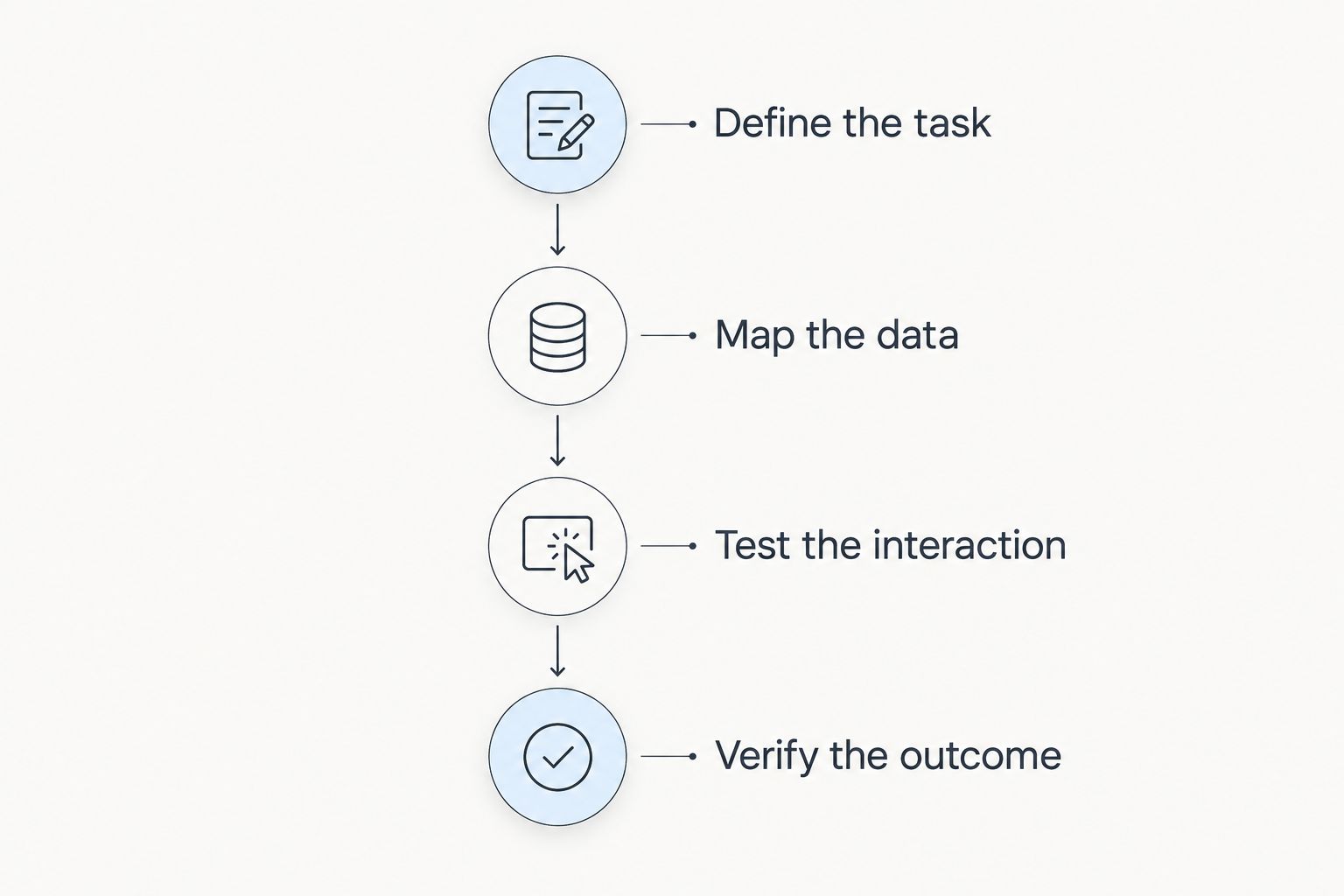
Run the same acceptance task under at least 2 user profiles with different access needs. Then examine 2 time-zone settings when the workflow uses timestamps; date-only workflows need their own checks for preserving the intended calendar date.
Those checks belong in your 2026 release criteria. They expose problems that a single administrator demonstration does not address.
How the options were ranked
The ranking follows the criteria above: calendar behaviour, Flow integration, data access, time handling, maintenance, and usability. Custom LWC ranks first for a genuine application-specific calendar because it lets your team define the required behaviour, while also assigning your team responsibility for delivering it.
Managed components are the next evaluation route when configuration is preferred to custom implementation. Standard date inputs win the narrower decision when the task is date capture rather than calendar interaction.
This is an architectural shortlist, not a scored product benchmark. The final selection belongs to the option that passes your workflow’s acceptance tests.
Which Salesforce Flow calendar component should you choose?
Choose a custom LWC for a true calendar requirement that needs application-specific behaviour. Choose standard Flow inputs when the task is simply date entry. Evaluate a managed package between those decisions when your team wants packaged UI components instead of owning the whole interface.
Avonni is a managed Salesforce UI component option for admins and developers evaluating packaged Flow screen building blocks. Require proof of the calendar workflow before treating a library as the answer to a scheduling requirement.
For your 2026 decision, name the maintenance owner before approving the implementation. A solution without an owner leaves future changes unresolved regardless of how well its first demonstration goes.
FAQ
What’s the best Salesforce Flow calendar component?
A custom Lightning Web Component is the best route when you need application-specific calendar behaviour and can own its implementation. Use standard Flow date inputs instead when users only need to enter a date.
Can I put a custom calendar in a Salesforce screen Flow?
Yes, a custom Lightning Web Component can be exposed for use on Flow screens. The component must implement the required calendar behaviour and communicate its inputs, outputs, and validation correctly.
Is a date picker the same as a Flow calendar component?
No, a date picker captures a date, while a calendar interface displays events or scheduling context. Choose according to the user’s task rather than the visual similarity.
Should I use managed components or build a custom LWC?
Evaluate managed components when their supported behaviour matches your requirements; build a custom LWC when application-specific behaviour requires implementation control. Include package administration or code maintenance in the decision.
Can a date input prevent double bookings?
A date input alone does not prevent double bookings. The workflow needs an explicit availability check and a defined process for creating or updating the booking.
What should I test before deploying a Flow calendar?
Test selection, empty results, rejected selections, access permissions, and the values returned to Flow. Also check navigation and time-zone behaviour wherever timestamps are involved.
One last thing
Test the screen with no visible events before approving it. An empty calendar should distinguish between no matching records, insufficient access, and a loading or retrieval failure; otherwise, users cannot tell whether they should change their selection or report a problem.
Write that distinction into the acceptance criteria. It is more useful than adding another calendar view to an interface whose empty state is ambiguous.