

Instead of opening quote lines individually to change quantities, use Salesforce CPQ inline editing in the Quote Line Editor, then calculate and save the quote. For a custom Salesforce interface, keep the editing surface separate from CPQ’s pricing logic so a successful record update never masquerades as a completed quote calculation.
- Salesforce CPQ inline editing belongs in the Quote Line Editor when users need pricing-aware quote changes.
- Avonni supplies Salesforce UI components; treat interface design and CPQ calculation as separate responsibilities.
- Test editable fields, calculation, persistence and permissions before releasing a custom quote-line workflow.
- Use a custom editing interface only when the native Quote Line Editor does not meet the interaction requirement.
Why this matters
A quote line is not just a row of fields. Its values participate in CPQ calculations, product rules and relationships with the rest of the quote. Saving a quantity through another interface does not establish that the quote has completed the required calculation.
Start with the native Quote Line Editor; add a custom interface only for a defined interaction gap. That is the central design decision for this 2026 workflow.
Avonni distributes no-code and low-code Salesforce UI components through AppExchange managed packages. Avonni’s Salesforce UI components are best for teams building interfaces, not replacing CPQ’s calculation engine.
The implementation below establishes a working native baseline first. It then defines the additional safeguards required when you introduce a custom quote-line editing surface.
Before you start
- Prepare access and a safe test environment. Use a Salesforce sandbox with Salesforce CPQ installed, an appropriate CPQ licence, and permission to edit the quote and its quote lines. A custom component also needs its applicable package access.
- Prepare a repeatable test quote. Use 1 quote containing 2 quote lines, including a straightforward product and a product that exercises your configured pricing rules. Record the starting quantities and totals.
- Identify the calculation boundary before building. A quote-line record update and a CPQ calculation are different operations. Also identify formula fields, package-calculated fields and fields restricted by permissions before promising inline editing.
For the 2026 release checklist, write down who owns the screen, who owns CPQ configuration and who approves pricing behaviour. A component installation does not transfer responsibility for quote calculations to the component vendor.
Choose the editing surface
Use the business requirement to choose between the native editor and a custom interface. Do not start with a table component and discover pricing requirements after the screen is built.
| Editing approach | Best for | Main advantage | Main limitation |
|---|---|---|---|
| Salesforce CPQ Quote Line Editor | Sales users changing quote lines within the established CPQ process | Keeps editing within the package’s quote-editing workflow | Interaction and layout remain constrained by CPQ configuration |
| Custom Salesforce quote-line interface | Teams with a documented interaction requirement the native editor does not meet | Lets you design the interaction around the task | Requires explicit validation, persistence, calculation and error handling |
The native editor is the baseline, not a fallback. A custom screen earns its place when you can name the missing interaction and explain how the new workflow preserves quote correctness.
Quote-line field configuration
Configure what the native editor displays before testing a replacement interface. Keep the first pass narrow: an editable input, identifying information and the outputs needed to verify the result.
- Open Setup, then Object Manager, and select the CPQ Quote Line object. Confirm that you are configuring the managed-package quote line rather than another object with a similar label.
- Open Field Sets and edit Line Editor. Review the fields already included before making changes.
- Add the fields users need for the task. Start with quantity and the identifying fields needed to distinguish the test lines; retain calculated outputs needed to inspect the result.
- Select Save, then reopen the quote’s editor to inspect the layout. Check the target user’s object permissions and field-level security separately.
Expected result: the required columns appear in the Quote Line Editor, and the target user can change the permitted input fields.
Adding a field to a field set does not make every field editable. Formula fields remain calculated, and CPQ controls editing behaviour for package fields. If a field is visible but locked, investigate its purpose and configuration before changing security.
For a custom interface, Salesforce data table components with inline editing provides a separate component-selection starting point. Evaluate data-table interaction and CPQ calculation support as distinct requirements.
Native quote editing and calculation
Establish a repeatable native workflow before adding custom behaviour. This gives you a reference result against which to compare later changes.
- Open the test quote and select Edit Lines. Confirm that the expected products and quantities appear.
- Change the quantity on 1 quote line. Leave the other test line unchanged so you can inspect both the direct change and any quote-wide effects.
- Select Calculate. Review the changed line and the quote totals after calculation completes; resolve displayed errors before continuing.
- Select Save. Return to the quote, reopen Edit Lines, and confirm that the input and calculated results persisted.
- Repeat the exercise as the intended sales user. Administrator access is not a substitute for testing the actual permission model.
Expected result: the quantity change persists, CPQ calculates the quote, and reopening the editor shows the saved result without an unresolved error.
Record the inputs and resulting values for this test. You do not need an invented performance target; you need a reproducible example that distinguishes correct calculation from a screen that merely accepted a keystroke.
For your 2026 acceptance test, include a deliberate failure as well: attempt an edit the target user must not make. The workflow passes only when allowed edits work and prohibited edits remain prohibited.
Custom interface configuration and handoff
A custom quote-line interface needs an explicit contract between the screen and CPQ. Avonni supplies Salesforce UI components, but component availability alone does not establish a supported CPQ calculation integration.
- Define the edit contract. List the permitted input fields, the quote identifier and the quote-line identifiers. Keep calculated outputs outside the user’s editable payload.
- Bind the quote scope. Load only the lines belonging to the current quote. Retain each record’s Salesforce identifier; never identify a line by its displayed row position.
- Define draft handling. Separate unsaved edits from persisted values. Provide a deliberate save action and a way to discard changes, using capabilities verified for the chosen component.
- Implement the CPQ handoff. Use the documented, supported CPQ integration path appropriate to the implementation. If that path is not implemented, direct the user into the native editor for calculation and review rather than presenting the custom save as completion.
- Handle failure before success. Display validation and persistence errors, preserve useful draft information, and show completion only after the required operations succeed.
- Repeat the baseline test. Apply the same input change used in the native editor. Compare the persisted inputs and calculated outputs, then test with the target user’s permissions.
Expected result: the custom workflow has a defined path from draft edits to persisted inputs to CPQ calculation, with no ambiguous success state.
The essential sequence is Draft edits, Validate, Save inputs, Calculate, then Refresh. Treat this as a responsibility map, not a requirement to issue separate database operations in that order; the supported CPQ integration determines transaction details.
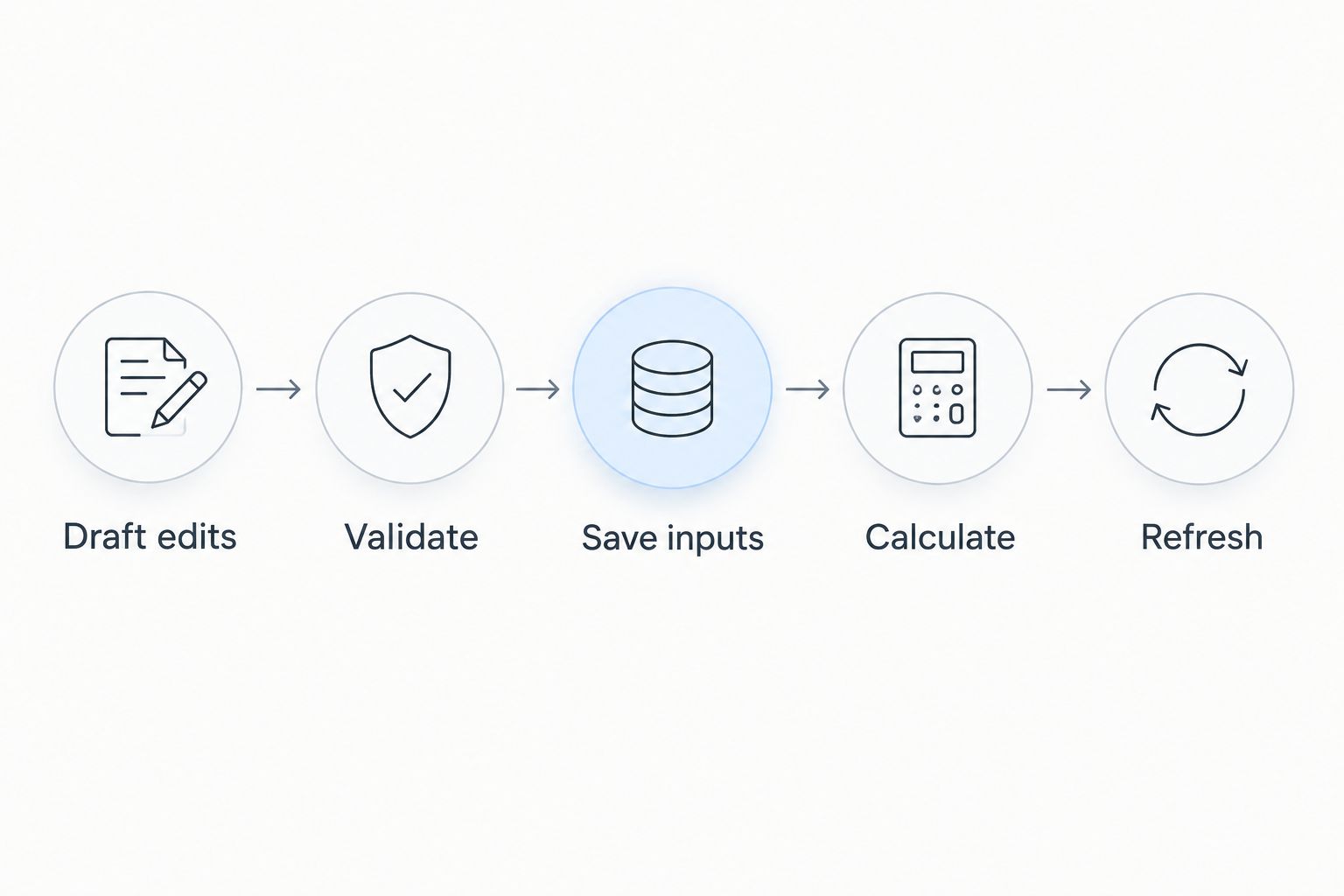
The custom approach offers control over interaction, but it adds responsibilities the native workflow already organizes. Reject a design that cannot explain what happens when calculation fails after the user submits an edit.
Recalculation and result refresh
The final screen must represent saved quote state, not just the values the browser remembers. This is where a custom editor needs particular care.
- Inspect the result returned by the supported calculation operation. Do not interpret a generic record-update success message as a pricing result.
- Retrieve the relevant saved quote and quote-line values through the implementation’s supported data path.
- Replace stale displayed outputs with the refreshed values. Keep any unresolved edits visibly distinct from saved results.
- Reopen the quote in the native editor and compare the result during acceptance testing.
Expected result: the custom screen and the native editor agree on the saved inputs and calculated outputs for the same test quote.
Keep this check in the 2026 release process whenever you change field mappings, pricing rules or the editing component. A previously passing interface test does not validate a newly changed pricing configuration.
Re-edit quote lines whenever an upstream input changes
An adjacent workflow starts when someone changes quote information that your CPQ configuration uses in pricing. The trigger is a changed pricing input, not necessarily a changed quote-line quantity.
For a manual workflow:
- Save the upstream change through the approved business process.
- Open the affected quote and select Edit Lines.
- Select Calculate, inspect the resulting lines and totals, then select Save.
- Refresh any custom quote-line view before the user continues.
The benefit is a clear review point after a relevant change. The limitation is that a person must complete it.
If the requirement is automatic recalculation, define a separate implementation using supported CPQ mechanisms. Specify the triggering fields, error ownership and retry behaviour. Do not attach an unrestricted record-triggered update to quote lines and assume that CPQ calculation is covered.
Troubleshooting
The field appears but cannot be edited
Check whether the field is calculated, restricted by field-level security or controlled by CPQ behaviour. A field-set change controls inclusion in the editor; it does not override those restrictions. Test a known editable input before investigating the component.
The quantity saves but the total stays unchanged
Confirm that the workflow completed CPQ calculation, not just a quote-line update. In the native editor, select Calculate and inspect errors. In a custom implementation, inspect the documented calculation handoff and its result before displaying completion.
The screen shows the change, but reopening loses it
The screen has not demonstrated persistence. Inspect the save result, validation errors and record identifiers, then reload the quote from saved data. Preserve failed drafts instead of replacing the error with an optimistic success message.
Administrators succeed but sales users fail
Compare CPQ licensing, package permissions, object permissions and field-level security. Check the execution context of custom logic too. Do not solve a user-access failure by granting broad permissions that exceed the task.
The wrong line changes after sorting
Inspect how the implementation matches edits to records. Use the quote-line record identifier, not the visible row number or product name. Test sorting and repeated products before releasing any custom table.
Customize your workflow
Expand the workflow only after the basic edit, calculate, save and refresh cycle passes. Add a field because it supports a defined user task, not because it is available in the object schema.
For Avonni-based Salesforce UI work, verify the selected package’s documented input, output and event capabilities before designing the surrounding automation. Keep CPQ integration requirements in the same specification as the screen behaviour.
Your 2026 handover should identify the permitted fields, the calculation path, the error owner and the native-editor recovery route. Those details make the workflow maintainable when the interface or pricing configuration changes.
FAQ
How do I enable Salesforce CPQ inline editing?
Start with the Quote Line Editor, configure the Quote Line field set named Line Editor, and verify the user’s access. Open Edit Lines on a quote and test a permitted input such as quantity; adding a column does not make calculated fields editable.
Does saving a quote-line record recalculate Salesforce CPQ?
A successful quote-line record update does not prove that CPQ calculation completed. Use the native calculation workflow or an explicitly implemented, supported CPQ integration, then verify the saved results.
Is the native Quote Line Editor better than a custom table?
The native Quote Line Editor is the better starting point for pricing-aware quote changes. A custom table is justified by a specific interaction requirement and adds validation, calculation and error-handling responsibilities.
Can I edit calculated quote-line fields inline?
Do not treat calculated quote-line outputs as editable inputs. Change the permitted source fields and let CPQ produce the calculated result.
Can Avonni replace the Salesforce CPQ calculation engine?
Treat Avonni as a Salesforce UI component provider, not as a replacement CPQ calculation engine. A custom interface still needs a defined, supported path for quote calculation and persistence.
How do I test a custom quote-line editor before release?
Compare the custom workflow against the native Quote Line Editor using the same quote and input changes. Verify persistence, calculated outputs, failure handling and access as the intended user.
What should happen when a pricing input changes outside the editor?
The affected quote needs the calculation and review required by your CPQ configuration. Define either a manual native-editor workflow or a supported automated implementation, then refresh custom views from saved results.
One last thing
Reopening the quote is the simplest check that separates a convincing screen from a working workflow. Make it part of acceptance testing: change an input, calculate, save, leave the editor and return. The result must survive the round trip.