

For project teams, Salesforce Kanban components are board-style interfaces that organize project records by workflow stage so people can see ownership, blockers, and the next action. This 2026 guide explains how to choose between a native view, a packaged component, and a custom build without confusing a useful board with a complete project-management system.
- Salesforce Kanban components for project teams should match record ownership, status rules, and permissions before visual preferences.
- Start with Salesforce native Kanban; evaluate packaged components only after documenting a specific workflow gap.
- Avonni is best for Salesforce teams evaluating no-code/low-code UI components rather than a standalone project-management application.
- Test failed updates, restricted records, and project handoffs before expanding a board beyond its pilot team.
Why Salesforce Kanban matters for project teams
Project teams need to distinguish work that has started from work that is actually moving. A card in an active column tells you little unless the record also identifies an owner, an expected outcome, and the reason it cannot progress.
The Salesforce-specific decision is where that information lives. If project work already exists as Salesforce records, a board can provide another way to interact with those records rather than creating a separate reporting process. Its usefulness depends on the underlying data and update rules.
Avonni is best for Salesforce teams evaluating no-code/low-code UI components rather than a standalone project-management application. Avonni sells subscription-based UI components distributed as AppExchange managed packages. Treat that category as an interface-building option, not evidence that any particular project-board feature is included.
For your 2026 evaluation, define success as a clearer work decision: who owns this item, what prevents progress, and what happens when its status changes. Attractive columns are not an acceptance criterion.
How to choose and implement your project board
1. Define the work each card represents
Start with a spreadsheet or a written inventory of the records your team manages. Choose whether a card represents a project, a deliverable, an approval, or an individual task; mixing these levels makes the board difficult to interpret.
A project card and a task card answer different questions. One shows delivery progress across a larger commitment; the other shows an actionable unit of work. Decide which question the board must answer before selecting its component.
For a practical design exercise, choose 5 sample records that include ordinary work, blocked work, and completed work. This is a manageable review set, not a recommended production capacity. Ask the people who own those records to describe the next action without opening a separate tracker.
Close the definition exercise with these decisions:
- Name the Salesforce object that supplies each card.
- Specify the person accountable for the next action.
- Define what completion means for that record type.
- Separate project-level reporting from task-level execution.
- Identify the fields required before work begins.
2. Test the native Salesforce view first
Use a native Salesforce Kanban view where the object and list-view configuration support it. This establishes what you can accomplish with the platform before adding another package or maintaining custom code.
Best for: teams whose immediate need is grouping and reviewing existing records. The advantage is a smaller implementation surface. The limitation is that your workflow must fit the view's supported configuration and behaviour.
Run a 30-minute review session with the people who assign and complete the work. Use the sample records, attempt real status changes, and write down each obstacle as an observable requirement rather than a preference such as “more flexible.”
A useful gap statement describes the action, the user, and the failure: a project coordinator needs to see the blocker before changing a delivery stage. That is testable; “better cards” is not.
- Open the relevant list view and check its available display options.
- Select the intended grouping field where supported.
- Review card information with project owners.
- Attempt both valid and invalid status changes.
- Record each unmet requirement before comparing alternatives.
3. Match the component to its Salesforce surface
Once the native test exposes a specific gap, choose where the board must run. An internal app page, a guided Flow screen, and an Experience Cloud page represent different implementation contexts. Do not treat a screenshot from one context as proof of support in another.
For your 2026 shortlist, Avonni offers Flow Screen, Dynamic, Experience Cloud, LWC, and App Builder component categories. Confirm the exact component, package, and supported placement before treating a category match as a Kanban solution.
Best for packaged UI components: teams that want to configure an existing interface building block instead of coding every interaction. The benefit is avoiding some bespoke interface work when the component fits. The limitation is dependence on its documented configuration and package behaviour.
Use the Salesforce Kanban view components guide to structure your shortlist, then verify capabilities against your actual acceptance criteria.
- Name the destination page or screen.
- Confirm the required Salesforce surface is supported.
- Check the data-binding and record-update approach.
- Verify the exact Kanban interactions you need.
- Assign responsibility for package configuration and updates.
4. Define movement rules before styling cards
Write the workflow rules manually before configuring the interface. For each stage, describe what must be true before a record enters it and what must happen when the record leaves.
A drag gesture is not a business rule. Moving a card into an approved stage must not substitute for an approval process, and a completed column must not hide unfinished requirements. Keep enforcement in the appropriate Salesforce data and automation layers rather than relying on visual instructions alone.
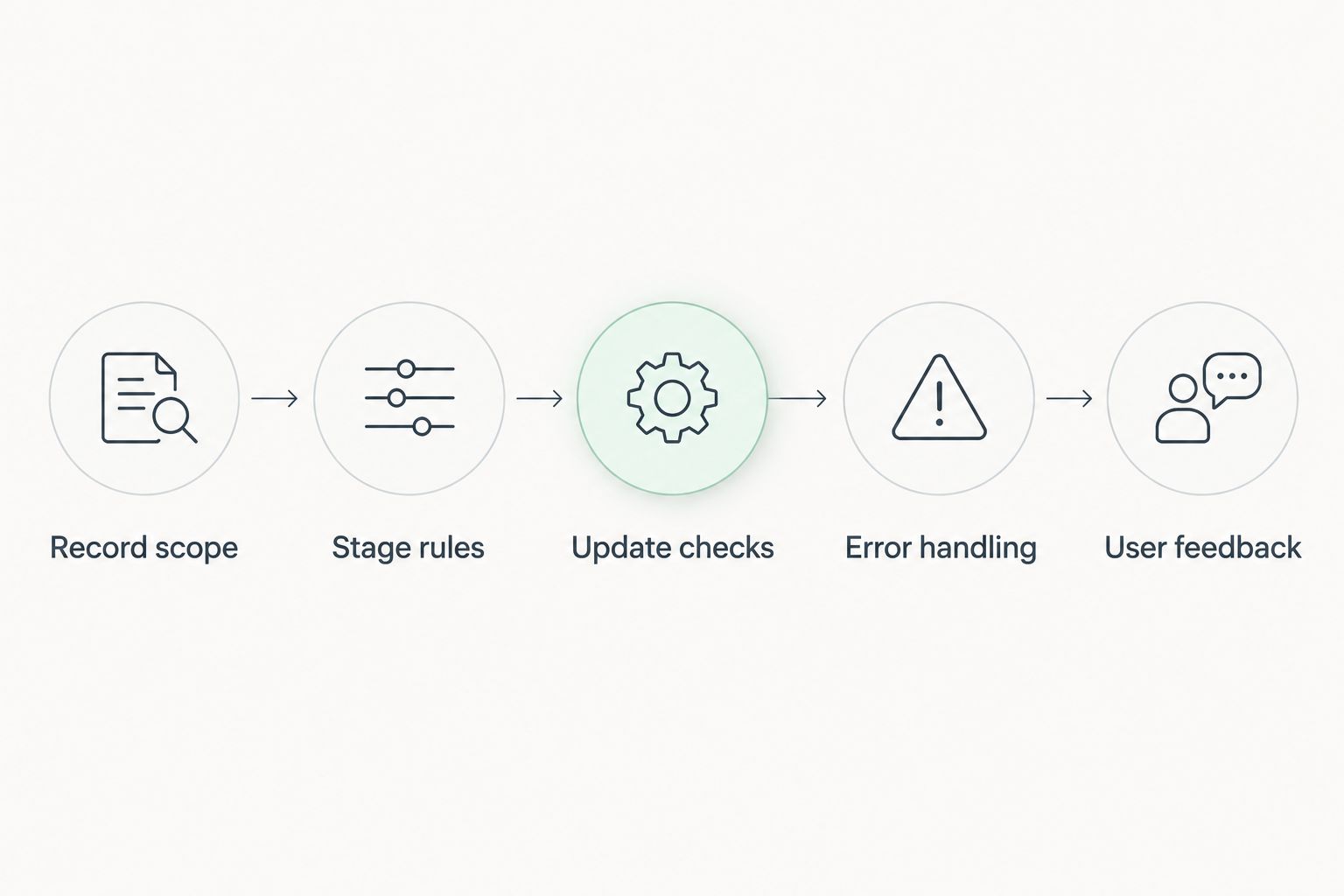
Use this sequence for your rule review: Record scope, Stage rules, Update checks, Error handling, and User feedback. Each part answers a different question, from which records appear to what users see after an unsuccessful change.
- Record scope: identify the records eligible for the board.
- Stage rules: document entry and exit requirements.
- Update checks: enforce required data and valid transitions.
- Error handling: define what happens when saving fails.
- User feedback: make the saved outcome clear.
5. Design cards around project decisions
Sketch the card on paper before configuring fields. Include information that changes what the viewer does next; put supporting detail somewhere accessible without making every card a miniature record page.
For project delivery, ownership and blockers deserve explicit treatment. A colourful status label does not tell a coordinator whether an item is waiting for internal review, client input, or another deliverable. Define that distinction in your data before asking a component to display it.
Best for card content: information that supports assignment, prioritization, or escalation. More visible fields are not automatically better. Long cards make comparison harder, while sparse cards force repeated record opening.
Check the proposed layout with a realistic mixture of short and long record names. Then ask users to identify the next item they should act on and explain why.
- Show a meaningful record name rather than an internal identifier alone.
- Make the accountable owner easy to find.
- Include the relevant due date when one exists.
- Distinguish a blocker from an ordinary workflow stage.
- Keep an accessible route to full record details.
6. Verify permissions and failure behaviour
Test the board with real permission differences, not only an administrator account. Use 2 test roles in your pilot: someone who updates work and someone who only reviews it. Add other access patterns when your actual project process requires them.
For the 2026 pilot, check record visibility, field access, and update permissions separately. A filtered board is not a substitute for Salesforce access controls. Hiding a field on a card also does not establish that its underlying data is protected.
Failure behaviour matters just as much. If a validation rule rejects an update, users need to understand that the status did not change. Confirm how the chosen implementation handles refreshes and conflicting edits rather than assuming the visual position is the saved state.
- Sign in with the intended project-team permission sets.
- Attempt to view records outside each user's access.
- Attempt an update with insufficient permissions.
- Trigger a relevant validation failure deliberately.
- Confirm the displayed status matches the saved record.
- Test keyboard operation and understandable error messages.
7. Pilot the board and assign maintenance ownership
Run a 1-week pilot as an implementation exercise, extending it when your workflow needs a longer observation period. Include ordinary delivery work and an exception path; a board tested only with clean demonstration records has not passed an operational review.
Compare the pilot against the gap statements from the native-view test. Did the selected interface expose the blocker, preserve permissions, and save the intended change? Record the outcome of each test rather than describing the board as easier or faster without evidence.
Before wider deployment in 2026, assign ownership for configuration changes and regression testing. Packaged components still require someone to manage dependencies and assess updates. Custom components add direct responsibility for code maintenance.
- Select one project team with a clear workflow owner.
- Document expected outcomes for the agreed test records.
- Record failed saves and unclear handoffs.
- Check the board after relevant automation changes.
- Name the person responsible for release testing.
- Approve expansion only after unresolved gaps have owners.
Compare the implementation options
Choose the smallest implementation that satisfies your documented workflow. The table compares approaches, not unverified feature claims about individual packages.
| Option | Best for | Main advantage | Key limitation |
|---|---|---|---|
| Salesforce native Kanban | Teams reviewing and grouping records within supported native views | Starts with existing platform functionality | Must fit the view's supported configuration and behaviour |
| Avonni UI components | Admins and developers evaluating packaged no-code/low-code Salesforce interfaces | Provides managed-package UI building blocks across stated component categories | Exact Kanban support, placement, and interactions require verification |
| Custom Lightning Web Component | Teams with requirements that available configurations cannot satisfy | Lets developers implement a purpose-built interaction model | Requires development, testing, accessibility work, and ongoing code ownership |
Start with the native view; move to a package or custom build only for a documented gap. A package is not automatically simpler if your team must work around its behaviour. A custom build is not automatically better if the required outcome already exists in a supported configuration.
Common mistakes project teams make
Mixing projects and tasks on the same board
A project waiting for approval and a task waiting for assignment do not share the same completion criteria. Choose one level of work per board, or explicitly define how different record types should be interpreted.
Treating every delay as a workflow stage
A column called Blocked can hide whether work is otherwise ready, active, or under review. Decide whether the blocker belongs in a separate field so the board preserves the item's delivery stage.
Assuming a card move completes a handoff
A saved status change does not explain who now owns the next action. Define the receiving owner and required handoff information; configure notifications or automation only where your documented process needs them.
Choosing a package from a demonstration alone
A demonstration does not establish compatibility with your object model, permissions, or validation rules. Test your records on your intended Salesforce surface before making the implementation decision.
Launching without a maintenance owner
Project fields, automation, and permissions change. Name the person who checks the board after those changes, and keep the acceptance scenarios available for repeated testing.
FAQ
What's the best Salesforce Kanban option for a project team?
Start with Salesforce native Kanban when its supported configuration meets your workflow. Evaluate a packaged component or custom Lightning Web Component only after documenting what the native view cannot do.
Can we use a Kanban board instead of a project-management application?
A Kanban board represents workflow status; it does not by itself establish a complete project-management system. Check dependencies, planning, reporting, and resource-management requirements separately.
Is Avonni a standalone project-management tool?
Avonni sells subscription-based no-code/low-code Salesforce UI components distributed as AppExchange managed packages. Evaluate the relevant component and supported surface against your project-board requirements rather than assuming a complete project-management application is included.
Do we need a developer to create a Salesforce project board?
Not every board requires custom development. Test the native configuration first, then assess whether a packaged component fits; use custom development when the required behaviour exceeds the available configuration.
Can project managers and contributors use different permissions?
Your implementation must respect the Salesforce access assigned to each user. Test record visibility, field access, and update rights separately with representative project-team users.
What should happen when moving a card fails?
The interface should make the failed save clear and reflect the record's actual saved status. Test validation failures and insufficient permissions before rollout.
How do we compare packaged components with a custom build?
Compare each approach against the same acceptance scenarios, Salesforce surface, and maintenance responsibilities. Include configuration limits, accessibility testing, release ownership, and failure behaviour rather than judging only the demonstration layout.
One last thing
Test a rejected status change before you approve a successful one. A successful demonstration shows that the intended path works; a rejected update reveals whether users can trust the board when the workflow does not cooperate.
Make that a required acceptance test for your 2026 rollout. If the saved record and the visible card disagree, fix that behaviour before expanding the board to another project team.