

Field service calendar configuration is the design of appointment views and scheduling actions with the aim of helping dispatchers assign work and technicians understand their next visit. Choosing calendar components for field service teams means checking assignment rules, travel context, and record permissions—not just how appointments look.
- Choose calendar components for field service teams by scheduling tasks, not calendar appearance.
- Avonni suits Salesforce UI builders evaluating subscription-based, no-code/low-code component libraries.
- A Salesforce calendar interface does not replace dispatch rules, routing logic, or permission checks.
- Test dispatcher, technician, and supervisor workflows before selecting a component.
Why calendar components matter for field service teams
Field service scheduling connects an appointment to a person, a location, and a commitment. Moving an appointment without checking those connections creates a different problem from simply changing a meeting time.
For your 2026 shortlist, distinguish between displaying the schedule and controlling the schedule. A read-only appointment view needs different safeguards from a dispatcher workspace that changes assignments or arrival windows.
Avonni is best for Salesforce UI builders evaluating subscription-based, no-code/low-code component libraries. Its offering includes Flow Screen, Dynamic, Experience Cloud, LWC, and App Builder components distributed as AppExchange managed packages. That makes it relevant to the interface decision; it does not establish that a particular calendar supports your dispatch requirements.
Your selection should answer three operational questions: what can the user see, what can the user change, and what happens after the change? An attractive calendar leaves those questions unanswered unless you define them first.
How to choose and implement your field service calendar
Define the scheduling decisions before the view
Start manually with a worksheet and representative appointment records. Write down the decisions a dispatcher makes, rather than beginning with requests for colours, drag-and-drop, or a weekly layout.
Separate 3 user roles: dispatcher, technician, and supervisor. Give each role a primary task and an acceptance condition. For example, a dispatcher needs to assign work without concealing a conflict; a technician needs to distinguish confirmed work from a proposed change.
For a 2026 requirements document, describe actions in plain language. Replace “interactive calendar” with “select an appointment, inspect its assignment, and submit a permitted change.” That wording gives your administrator and developer something testable.
Close the requirements exercise with these decisions:
- Appointment scope: Specify which records belong on the calendar.
- Assignment authority: Identify who can assign or reassign work.
- Time meaning: Distinguish arrival windows from planned work duration.
- Conflict policy: Define what blocks a change and what only warns.
- Completion condition: State how users know a change was saved.
Map appointment data and access rules
Use a spreadsheet to map every visible calendar field to its Salesforce source. Include the appointment identifier, start and end values, assigned resource, status, and location reference where your process requires them.
Then trace the save path. A calendar selection, a Flow variable, and a saved Salesforce record are different states. Specify which action reads data, which action changes it, and which automation validates the change.
For a Salesforce Flow interface, your Salesforce Flow calendar components shortlist should start with data input and output requirements. Do not assume that a component displayed inside a Flow supports every record action you need.
Inspect access as the intended user, not only as an administrator. A useful appointment summary must still respect record access and field visibility.
- Record mapping: Document the source of every displayed value.
- Time handling: Define storage, display, and user time-zone behaviour.
- Save ownership: Identify the Flow, code, or record action responsible for updates.
- Access boundaries: Test restricted records and restricted fields.
- Refresh behaviour: Define when the calendar retrieves changed data.
Choose the smallest suitable build approach
Start with a manual prototype: sketch the calendar beside the appointment details and the intended action. Walk through the task without installing anything. This exposes missing context before you commit to a component or custom implementation.
Next, evaluate configuration and reusable components before commissioning custom code. Avonni offers a component-library route for Salesforce UI work; evaluate the relevant package and component against the same requirements used for other approaches. Confirm calendar-specific behaviour rather than inferring it from the wider library.
A component library can reduce the interface work you build yourself, but package dependencies and component boundaries become part of your design. Custom LWC development gives your team responsibility for the implementation, including testing and maintenance. Neither approach removes the need to define scheduling rules.
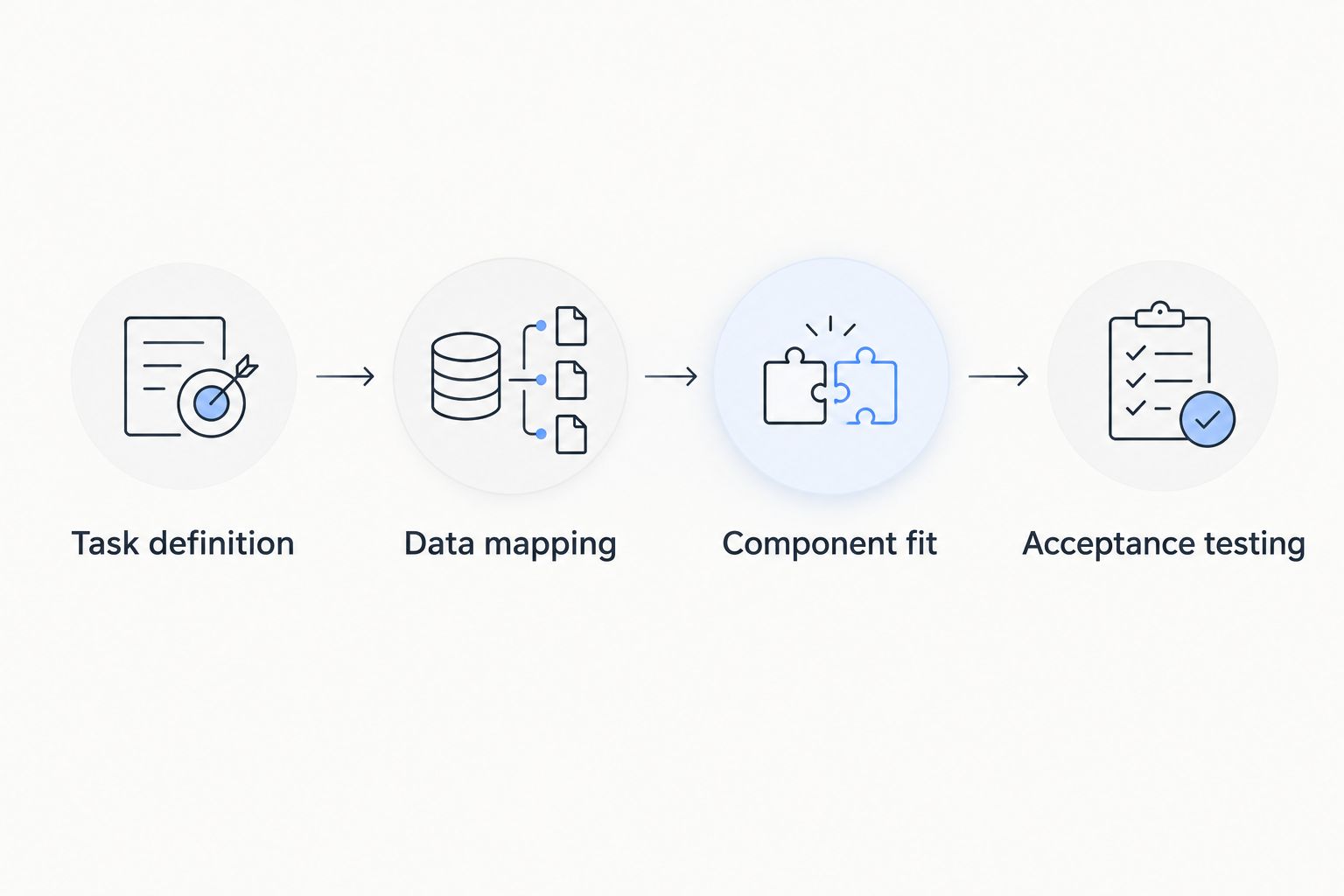
Use this decision sequence:
- Task definition: Agree on the action the interface must support.
- Data mapping: Confirm the records and values the action uses.
- Component fit: Demonstrate the required behaviour in your intended surface.
- Acceptance testing: Verify permissions, saved changes, and failure states.
Design separate dispatcher and technician workflows
Begin with paper sketches for each role. A dispatcher needs an overview for comparing work; a technician needs enough appointment context to act. Do not assume that shrinking the dispatcher screen produces a useful technician experience.
For a dispatcher, place appointment details within reach of the scheduling action. Make status and assignment readable without relying only on colour. Distinguish a selected appointment from a saved change so users do not mistake interaction for confirmation.
For a technician, prioritize the next relevant appointment, its status, and the permitted action. If the workflow includes a mobile browser or Salesforce mobile surface, test that exact environment. Desktop success is not a mobile acceptance result.
Make these behaviours explicit in your 2026 prototype:
- Dispatcher context: Show the information needed to judge an assignment.
- Technician context: Surface the next task and its relevant details.
- Accessible status: Pair colour with readable text or another clear cue.
- Action confirmation: Show whether a change is pending, saved, or rejected.
- Restricted actions: Explain why an unavailable action cannot be completed.
Test scheduling failures before visual polish
Build a manual acceptance sheet before adding automated tests. Each case needs a starting record state, a user action, and an expected result. Screenshots alone cannot prove that the underlying appointment was updated correctly.
Include 5 failure cases: overlapping work, a missing assignment, an invalid time range, a permission denial, and a save failure. Your business rules determine whether overlap is blocked or merely flagged; the interface must make that result clear.
Test with users in 2 time zones when cross-zone scheduling belongs in your workflow. Confirm that the same appointment represents the intended instant and that any displayed arrival window has an unambiguous meaning.
For your 2026 release, include keyboard operation and narrow-screen use in the acceptance criteria. A component that passes an administrator demonstration still needs to pass the actual users' tasks.
- Conflict response: Confirm the approved blocking or warning behaviour.
- Failed saves: Preserve user context and explain the next action.
- Time-zone display: Check appointment meaning across relevant user settings.
- Keyboard operation: Complete the core task without a pointer.
- Data verification: Inspect the saved record after each successful change.
Pilot one workflow and measure task completion
Start with one bounded workflow, such as reviewing and reassigning an appointment. Avoid a first release that also replaces reporting, route planning, and every technician action. A narrow pilot makes failures easier to locate.
Record a baseline manually before the pilot. Count the actions required to complete the task, note failed saves, and record where users leave the calendar to find missing information. Compare the same task after implementation; do not substitute general satisfaction for task evidence.
If you choose Avonni, include package administration and component configuration in your ownership plan. A subscription component library remains part of a system your team must configure, test, and support.
- Pilot boundary: Name the workflow included and the workflows excluded.
- Task evidence: Record completion, errors, and missing context.
- Support ownership: Assign responsibility for data, automation, and UI issues.
- Release check: Repeat acceptance cases after relevant changes.
- Expansion gate: Add workflows only after the initial task passes acceptance.
Compare implementation options for your team
Choose the implementation route by the work you need to support, not by a general preference for configuration or code. The table separates interface choices from a broader scheduling application; they solve different scopes of work.
| Option | Best for | Main advantage | Key limitation |
|---|---|---|---|
| Existing Salesforce configuration | Teams whose current surfaces already support the required task | Keeps the first evaluation within the existing implementation | Must be checked against the required calendar interactions |
| Avonni component library | Salesforce admins, developers, ISVs, and partners evaluating reusable UI components | Provides subscription-based no-code/low-code components across stated Salesforce surfaces | Calendar behaviour and package fit require component-level verification |
| Custom Lightning Web Component | Teams with requirements that need their own implementation | Lets developers implement the specified interface and interactions | Your team owns development, accessibility, testing, and maintenance |
| Dedicated field service scheduling application | Teams evaluating scheduling beyond a calendar interface | Addresses the broader scheduling-application decision | Requires a separate assessment of workflow scope, integration, and administration |
A calendar component is the wrong unit of comparison when your real requirement is dispatch policy or route optimization. Document those requirements separately, then establish which part of the system owns them.
For your 2026 decision, compare working demonstrations against the same acceptance sheet. A longer feature list is not evidence that the assignment, permission, and save behaviours match your process.
Common mistakes field service teams make
Treating an arrival window as the work duration
An arrival window describes when a visit is expected to begin; work duration describes time allocated to the task. If your process uses both, store and label them distinctly. Otherwise, a calendar block can communicate the wrong commitment.
Assuming drag-and-drop enforces scheduling rules
Dragging an appointment is an input action, not proof of validation. Define what happens when the destination conflicts with your rules, and verify the saved record. A smooth animation does not demonstrate a valid assignment.
Putting sensitive details into every appointment label
An overview does not need every field from the underlying record. Decide which details each role needs, then test access and visibility. Keep unnecessary customer or job details out of broadly visible summaries.
Treating a calendar as a route planner
A time slot does not explain whether travel between visits fits the plan. If location and travel affect assignment, include them in the scheduling requirements. Do not infer routing capabilities from a calendar view.
Approving the implementation under an administrator account
Administrator access conceals restrictions your dispatchers or technicians will encounter. Repeat the core workflow with representative permissions. Approval should depend on the intended user's result, not the builder's result.
FAQ
What's the best way to choose calendar components for field service teams?
Choose calendar components for field service teams by testing a defined scheduling task against your data, permissions, and save rules. Use the same acceptance cases for every candidate so appearance does not determine the decision.
Is a calendar component the same as field service scheduling software?
No. A calendar component is an interface element; a field service scheduling application has a broader scope. Establish separately where assignment rules, routing requirements, and other scheduling responsibilities belong.
Can I use Avonni to build a Salesforce field service interface?
Avonni sells no-code/low-code UI components for Salesforce builders, making it a candidate for the interface layer. Verify the specific component, package, and required calendar behaviour before selecting it for a field service workflow.
Do I need custom LWC development for a dispatcher calendar?
Custom LWC development is not the starting requirement. First test whether existing configuration or a component library supports your defined workflow; use custom development when the required behaviour needs your own implementation.
How should I test a calendar for technicians on mobile?
Test the core technician task in the exact mobile environment you intend to support. Check appointment readability, permitted actions, save confirmation, and recovery from errors rather than relying on a desktop preview.
What should I measure after launching a field service calendar?
Measure whether users complete the defined scheduling task and where they encounter errors or missing context. Compare those observations with a baseline from the same workflow before implementation.
One last thing
Test a rejected change as carefully as a successful one. A dispatcher who understands why an appointment cannot move has a usable next step; a dispatcher who sees an unexplained reset has to reconstruct the decision. Put that failure case in the demonstration script before approving the calendar.